
Mobile Legends Lag Fix: Cut Your Ping in Ranked

· 4 min read
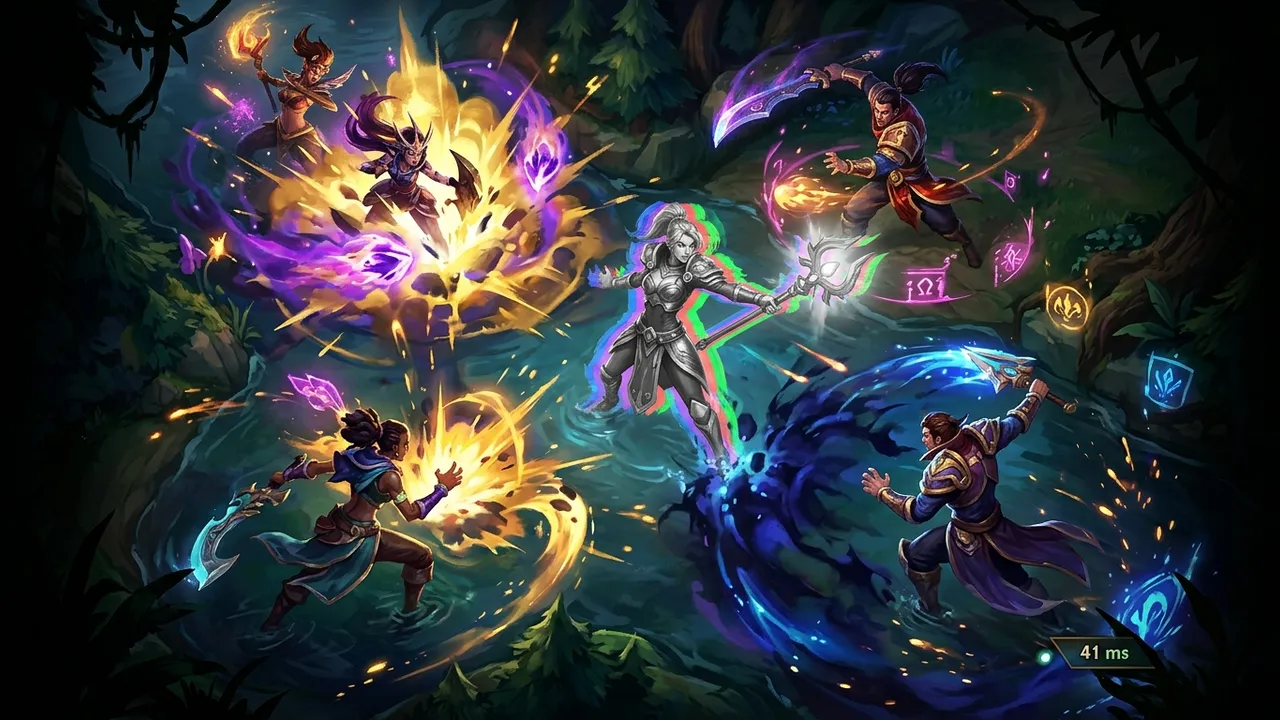
A Mobile Legends lag fix comes down to one split: stuttering skills or red ms. Both wreck a teamfight, and they need opposite repairs. Frame lag is choppy animation, the hero skating instead of moving. Network lag is the delay between tapping a skill and it landing, and it is what kills you during a Lord fight.
Look at the network indicator top-right. Mobile Legends colors it for you. Green ms means your route is clean. Yellow is borderline, and red means your packets are crawling to the server, which no graphics setting can fix.
In our recorded test match the same game ran at 120-217 ms on the default path and 28-32 ms through a better route, with nothing else changed. That gap is why your ganks land late. At 200 ms the game is drawing the enemy where they stood a fifth of a second ago, and your skill-shot chases a ghost.
You can prove which one you have in a single match. Watch the top-right number the whole game. If it holds green under 50 and only blips during a fight, your route is fine and frames are the culprit. If it lives in yellow or red, that color is the fix you are chasing, and it is not on the graphics menu.
The fastest fix for red ping
The reason MLBB ping sits red is almost always the route, not your phone. Smart routing checks every path from your phone to the match server and parks Mobile Legends on the shortest, most stable one. It touches only MLBB, so your browser, your music and your group chat keep the connection you already have.
Open LagX, choose Mobile Legends, and tap Optimize. The ms in the top-right is your scoreboard now. Fix your MLBB ping and watch that number before you touch anything else. If it falls from red to green, your phone was never the problem.
If your ms is already green and low, routing won’t help, and your problem is frames. Keep reading.
Turn on High Frame Rate
Mobile Legends ships with High Frame Rate mode off on plenty of phones. Go to Settings, then the display options, and switch on High Frame Rate. On a supported device your animations jump to a smoother cap and skill-shots feel far more precise.
On a handful of high-refresh phones the cap climbs past 60 into the 90 or 120 range. If your screen supports it and the option shows up, take it. Those extra frames make last-hits and dodges land cleaner.
While you are there, download Speed Mode. It pulls a lighter resource pack that loads faster and cuts mid-match hitching on older phones. It is a real toggle in settings, and it costs you a few minutes once.
Drop the graphics quality if your phone is mid-range. Lower shadows and effects buy you steadier frames in a five-versus-five scrum, which is exactly when you can’t afford a stutter.
The boring fixes that actually hold
Get on 5 GHz Wi-Fi. The 2.4 GHz band is slower and jammed with every device in your home, and that jitter shows up as ms spikes right when the enemy engages. Pick the network ending in “5G” in your Wi-Fi settings.
Kill background apps before you queue. A download or a video eating bandwidth adds lag no route can smooth over. Clear them, then launch.
Set a public DNS while you are in the Wi-Fi settings. The default resolver can be slow to return the server address, which drags out the connect and the loading screen. A resolver like 1.1.1.1 or 8.8.8.8 speeds the handshake, though it won’t move your in-match ms.
Clear the cache from Mobile Legends’ own settings once in a while. A bloated cache slows loading and can leave the hero pool stuttering on the first fight. It sits under the basic settings, and it only wipes temp files, not your rank or skins.
Watch the heat. A hot phone throttles its chip, and your frame rate falls off a cliff in long ranked sessions. Take the case off. It helps more than you would guess.
If home Wi-Fi is congested at night, test one match on strong mobile data. MLBB needs low latency more than heavy bandwidth, so a clean LTE or 5G signal sometimes beats a crowded router. Keep whichever shows greener ms in the top-right.
When it is not on your end
Some lag is not yours to fix. If everyone in the match freezes at the same moment, the game server hiccuped, and waiting is the only move. Restarting won’t beat a server-side stall.
A routing app also can’t repair weak Wi-Fi. If the signal drops packets before they even reach your router, sort that first. Even a great route can’t invent data that never arrived.
A phone low on free storage stutters too, because MLBB can’t cache what it needs mid-match. Free up a couple of gigabytes and Speed Mode has room to do its job.
People blame their reflexes for deaths that were really a 200 ms delay. If your ping reads fine but the game still lags on strong Wi-Fi, this breakdown explains why good internet and low game ping aren’t the same thing. If you also run shooters, the same routing logic covers PUBG Mobile lag, and the Mobile Legends page lists which devices support High Frame Rate. Check the color of that top-right number before you blame your thumbs.


