
eFootball Mobile Lag Fix: Beat the Input Delay

· 5 min read
On this page
eFootball delay on mobile is almost always the route to the match server, not your phone. That beat between tapping shoot and your striker actually swinging is a late packet, and it’s the version of lag you can beat. This guide sorts the fixes by how much they pay off, starting with the one that moves the needle most.
Delay in eFootball comes in two flavors that need opposite repairs. One is frame lag: the pitch stutters and players skate instead of running. The other is network delay, where the game looks smooth right up until your pass fires a moment after you asked for it and the defender reads it. That second one loses you the ball in midfield every time.
Telling them apart takes one match. If the game stutters while you’re just scrolling your Dream Team or sitting in a menu, that points at the phone. If it plays clean until an online opponent closes you down and your through-ball suddenly lands a second late, that points at the network. eFootball flags a shaky connection with a warning during online matches, so watch for it.
The fastest fix for eFootball delay
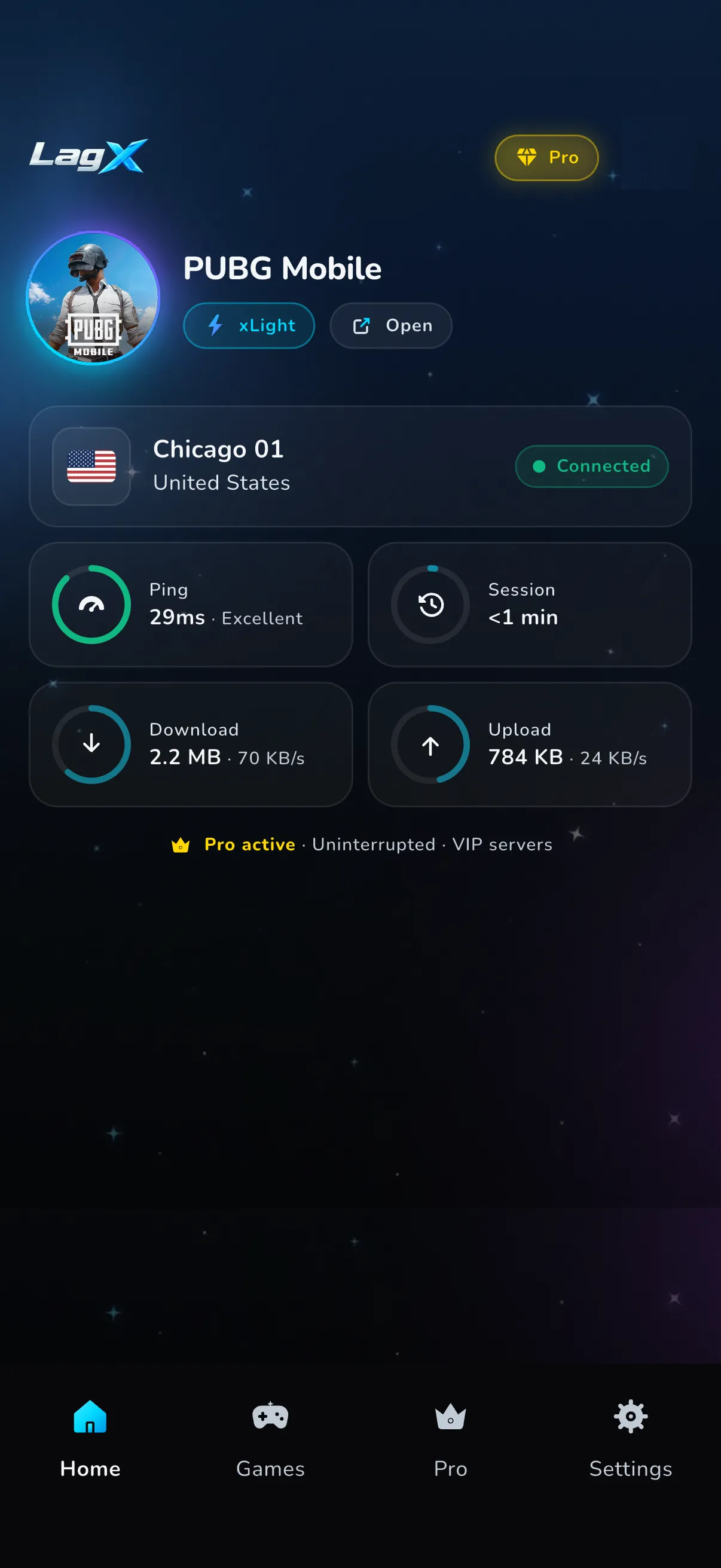
The reason the ball reacts late is the path your traffic takes to the match server, and closing that gap is the whole job of LagX. It checks the routes from your phone to the server in real time and locks eFootball onto the quickest, steadiest one. Only eFootball gets moved, so your browser, your music and any background download keep the connection they already had.
Setup runs about a minute. Install it, open the eFootball booster, pick eFootball from the list, and tap Optimize. The in-match connection indicator is your scoreboard now.
Tested purely on the routing, the default route swung from 120 up to 217 ms, and the optimized route sat calm at 28 to 32. An online football match leans on a low, steady ping the way a MOBA teamfight does.
None of that is magic. A shorter route can’t rescue weak Wi-Fi or cool an overheating phone. It only trims the road your packets travel. Everything the route leaves untouched lives in the settings below.
Tune eFootball’s own settings
A few in-game toggles quietly drain frames and responsiveness well before your internet enters the conversation. Each one is free and takes under a minute.
Match your graphics to your phone
eFootball pushes image quality high by default, and on a mid-range phone that is the first thing eating your frames. Open Settings, then Graphics, and drop the image quality a notch. You give up a little sharpness and get a steadier pitch, which matters far more in a tight online match.
If your phone has a high-refresh screen, look for the frame-rate option and switch it on. On a supported device the animation cap climbs and your dribbling inputs feel sharper. Not every phone shows it, so don’t panic if it’s missing.
Finish the data download first
eFootball streams extra game data after install, and a half-finished download shows up as stutter in your first few matches. Let it pull everything on Wi-Fi before you queue a ranked Division game. It’s a one-time wait that saves you a laggy match later.
Close background apps and pause uploads
eFootball plays best when it owns your RAM and your upload bandwidth outright. Swipe away open apps before kickoff, since a pile of browser tabs is parked on memory the game could use. If a cloud backup or a video upload fires up mid-match, it eats your bandwidth and your ping rides up with it. Hold it until the final whistle.
Let the phone cool down
Heat is a quiet frame thief. Push past the twenty-minute mark and a warm phone starts throttling its chip, so your frame rate sags right as you’re chasing a comeback. Slide the case off for airflow, and don’t game while the battery charges, because charging piles on its own heat. A long session holds together far better that way.
When the route is the culprit
If the path is the weak link, run down this checklist first.
- Get on your router’s 5 GHz band if it has one. The 2.4 GHz side is jammed with every device in the house, and that clutter turns into delay spikes.
- Sit closer to the router and clear it out of a sealed cabinet so the signal has room to breathe.
- Pause a heavy download or a 4K stream that shares your line. They swallow the headroom a clean match needs.
- Out and about, a solid 5G bar usually wins against a packed café hotspot.
Verify every tweak the only way that means anything. Play one online match and watch both the connection meter and the feel of your passes. If the delay eases while your frame rate never moved, the network was the weak link all along.
When it’s not on your end
Some delay was never yours to fix. The match servers stumble after a big season update, and when they do the whole lobby feels heavy no matter what you tap. Check the game’s status before you tear your setup apart.
Cross-play adds a wrinkle too. A mobile match against a console opponent can feel different from a phone-versus-phone game, and that’s the matchmaking rather than your route. And a tight path still can’t invent bandwidth that hotel Wi-Fi keeps dropping.
If your ping reads fine but matches still feel sluggish on solid Wi-Fi, this breakdown of lag on good internet explains why speed-test numbers and match delay aren’t the same thing. The same routing approach covers shooters like Free Fire, where a high ping tells the same story, and good ping for gaming maps what a healthy number actually looks like. Read the connection meter before you trust your reflexes.


