
Free Fire High Ping: Causes and Fixes

· 5 min read

High ping in Free Fire is almost always about distance and the route, not your download speed. Ping is the round-trip time for a single packet to reach the server and come back, measured in milliseconds, and Free Fire starts feeling awful once it climbs past roughly 100 ms. If your Free Fire high ping shows up on a connection that speed-tests fine, the path is the problem, not the pipe.
That difference trips a lot of players up.
Speed and ping are not the same thing
Speed is how much data you can move at once. Ping is how fast one packet makes the round trip. You can sit on a 300 Mbps line and still fight a laggy 90 ms ping, because the two numbers measure different things.
For Free Fire, under 60 ms feels crisp. 60 to 100 ms is playable. Past 100 ms your shots start landing late and you lose trades you should have won. I put the full numbers, jitter and all, in good ping for gaming.
What actually raises your ping
Distance to the server
Physics sets a floor. A packet can’t cross the planet faster than light down a cable, and real routes run slower than that. If your match lands on a data center a couple of countries away, your ping starts high before anything else goes wrong.
The rule of thumb is simple. The farther the server, the higher your floor, and no app deletes distance. It can only pick the least wasteful road to cover it. Free Fire ties matchmaking to your account region, so you usually can’t just pick a nearer server from the menu.
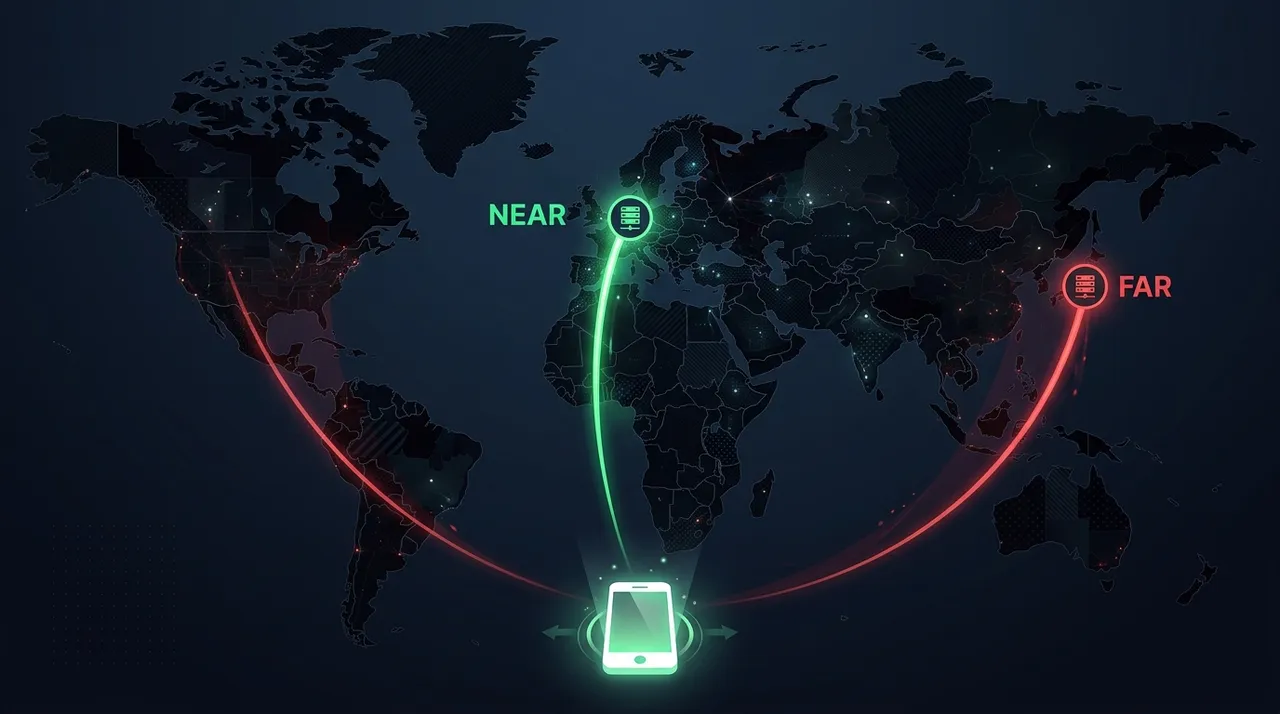
You can see your assigned region on your Free Fire profile. If it’s pinned to a distant one from an old account setup, that alone adds real latency to every match, and no local tweak claws it back.
The route your ISP chose
Even inside your region, your ISP decides how your packets travel, and it optimizes for its own cost, not for your ping. Traffic can bounce through an exchange in another city before it reaches the game. Every extra hop, every stop along the way, adds a few milliseconds. On a bad night a route that should sit at 30 ms drifts up to 80.
Wi-Fi and mobile data
Wi-Fi stacks its own delay on top of the internet ping. A crowded 2.4 GHz band, a router across the apartment, a neighbor camped on your channel, all of it adds latency and jitter. Jitter is the variation in ping from packet to packet, and Free Fire hates it more than a steady high ping.
You can spot jitter by eye. If the in-match ping bounces between 40 and 120 instead of holding a line, that’s the problem, and it throws off aim more than a steady 90 would.
Mobile data can beat bad Wi-Fi on raw ping, but it’s less predictable. A strong, stable 5 GHz Wi-Fi is usually the safer bet.
Other devices on your network
Your ping isn’t only about you. A roommate streaming 4K or a phone backing up photos in the next room competes for the same road out of the house. Pause the big transfers before ranked, or put the game on its own 5 GHz band if your router splits the two.
Bufferbloat
There’s a sneaky one called bufferbloat. When something on your network uploads hard, a cheap router piles packets into a buffer instead of sending them, and everyone’s ping balloons. It’s why a cloud backup can wreck a match that felt fine a minute earlier. A router with smart queue management fixes it, if yours has the option buried in the settings.
Peak hours
Ping climbs when everyone’s online. Evening ranked on a congested ISP or a shared dorm network runs worse than the same match at noon. That congestion is real, and past picking your moment it’s mostly out of your hands.
How to lower Free Fire ping
Start with the free stuff. Move to 5 GHz, sit near the router, and kill background downloads. Those three win back the ping you’re bleeding at home.
Test as you go. Free Fire shows your ping right there in the match, so change one thing, drop back in, and read the number. Chasing ping without measuring is how people burn an afternoon and fix nothing.
After that, the real lever is the road itself. Between your phone and the Free Fire server sit dozens of possible paths, and your ISP rarely picks the quickest. A game router keeps testing those paths live and holds your traffic on the shortest one it finds. Clocked in a routing test we ran on the side, a fight ran at 120-217 ms on the default path and 28-32 ms through a better route, and Free Fire behaves the same way.
The LagX Free Fire booster does exactly this, and only for the game you pick, so your browsing and messages stay on the normal connection. Lower your Free Fire ping and watch the connection screen. Our in-app example reads 41 ms at “Excellent” quality when the route lines up.
Here’s the honest ceiling. Smart routing shortens the path, but it can’t beat physics. If the nearest Free Fire server is genuinely far, a shorter route helps a lot and still won’t drop you to single digits.
It also can’t fix the game’s own servers on a bad day. When the whole lobby is lagging, that’s server-side, and nothing on your phone reaches it.
If your problem is stutter rather than ping, that’s a different fix entirely. Frame drops and heat come from the device, and I walked through those in how to fix lag in Free Fire.
Ping is mostly geography and routing. You can’t move the server closer. You can make the road to it shorter, and most nights that’s enough to stop losing fights to the connection.
