
How to Fix Lag in Free Fire on Mobile

· 5 min read
On this page
Free Fire lag comes from one of two places. Either your phone is fighting to draw the match, or your connection is taking a slow route to the server. Sort out which one you have and the fix stops being a guessing game. Here’s how to fix lag in Free Fire, in the order that actually moves the needle.
There’s a fast way to tell them apart. If the game stutters even in the lobby or on the training island, that’s your device. If it runs clean until a firefight and then rubber-bands, that’s the network. Rubber-banding is when your character snaps back to where they were a second ago, which means packets are arriving late.
Watch the ping counter Free Fire shows during a match. If that number jumps around while your frame rate holds steady, the network is your problem, plain and simple.
The two feel different once you know the tells. Device stutter is steady, a constant judder that never really clears. Network lag spikes instead, fine one second and a teleport the next. Clash Squad punishes that second kind hardest, since one late packet can lose the round.
The fix that pays off most
This part takes about three taps. You open the LagX Free Fire booster, pick Free Fire from the list, and hit Optimize. From there it does the hunting for you, testing the routes to the game server and pinning your traffic to whichever one answers fastest.
The frame-rate side backs it up: a stable route took a choppy session from 25-45 FPS with network hitches to a steady 60. The frames were always there. The stutter was the network eating them.
If the route is your problem, this is where to start. Fix the ping first, then work through the device settings below.
One honest caveat. A routing app can’t rescue a weak Wi-Fi signal or a phone that’s overheating. It shortens the path, nothing more. So the device fixes still matter.
Fix it on the phone
Drop the graphics preset
Open Settings from the Free Fire lobby and go to the Graphics tab. Set the graphics preset to Smooth instead of Ultra. Smooth renders fewer effects, which frees the phone to hold a steadier frame rate when a fight kicks off.
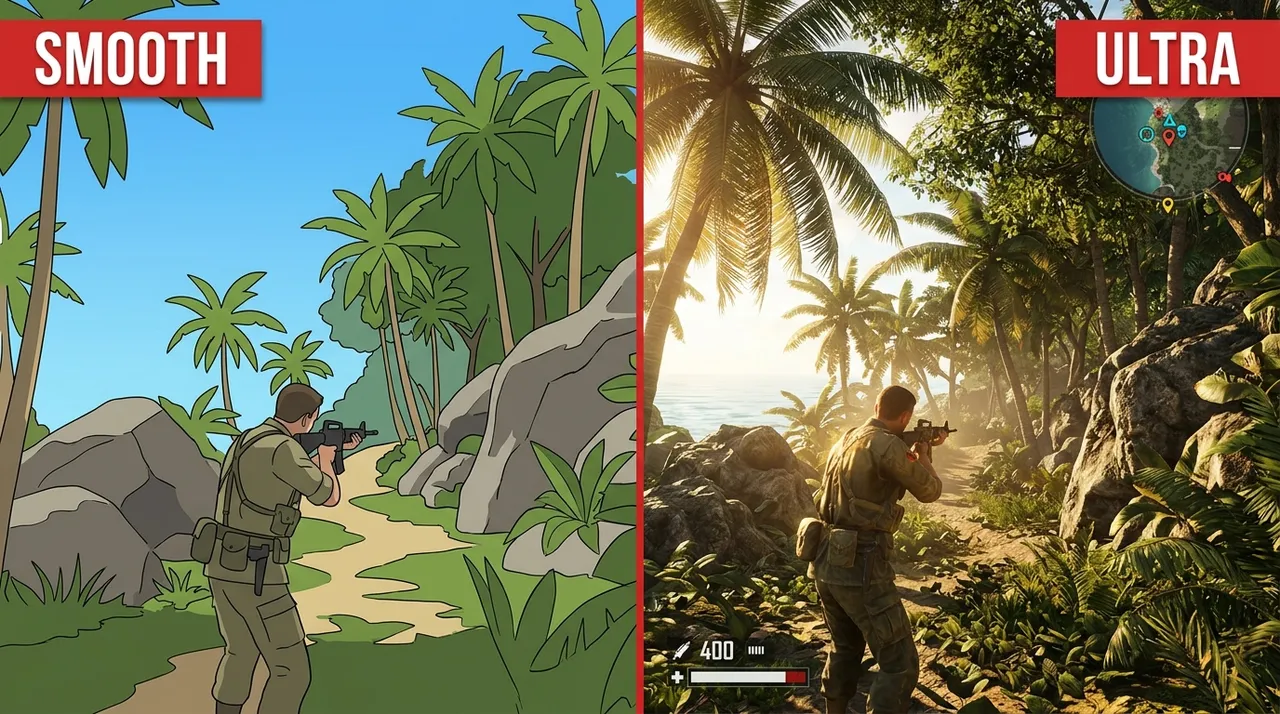
The trade is purely visual. Smooth loses some shadow and texture detail you won’t notice mid-fight, and the phone gets that headroom back for frames.
Keep the frame rate on High if your device offers it. Smoother frames help your aim far more than prettier shadows do. On an older phone, that trade alone can turn a slideshow into a playable match.
Close what’s running
Free Fire wants RAM, and a browser sitting on twenty tabs steals it. Clear the recents tray before you queue. On iPhone, swipe the heavy apps away first.
Keep the phone cool
Heat is the quiet killer. After 15-20 minutes a hot phone throttles its chip to cool down, and your frame rate sinks with it. Take the case off.
Try not to play on charge, since charging piles on more heat. If the back of the phone is warm to the touch, that’s your stutter.
Kill battery saver
Battery saver mode does exactly what it says. It caps the chip to save power, and that cap shows up as dropped frames the moment a fight gets busy. Turn it off before ranked and back on after. The same goes for any aggressive adaptive-battery setting that puts the game to sleep in the background.
Update the game and reboot
Garena ships performance patches fairly often. An out-of-date client can stutter on a phone that handles the current build fine. Update Free Fire, and if you play daily, reboot the phone once a week to clear whatever the system has been holding onto.
Network quick wins
If the lag is the network, a few things help before you touch the route.
- Use the 5 GHz Wi-Fi band, not 2.4 GHz. It’s less crowded, so less interference from neighbors and microwaves.
- Get closer to the router, or lift it off the floor.
- Reboot the router if you haven’t in weeks. They get flaky after months without a restart.
- Pause downloads and 4K streams on the same network. They eat the bandwidth the game needs.
- On mobile data, a strong 5G signal often beats congested café Wi-Fi.
Confirm each change the same way. Play one Clash Squad round and watch both the ping number and the frame counter. If the ping steadies but the frames still drop, you’re chasing the wrong culprit.
Ping deserves its own breakdown. If Free Fire runs fine at home but spikes the moment you queue ranked, the usual culprit is distance to the server or a messy route, not your phone. I went deep on that in Free Fire high ping: causes and fixes.
Plenty of players also get lag on a connection that speed-tests great and assume the number is lying. It isn’t. Bandwidth and lag are separate problems, and I unpacked why in lag with good internet.
When nothing you do helps
Some lag isn’t yours to fix. If Free Fire’s own servers are having a rough patch after a big update, everyone lags and no setting saves you. Check the game’s social channels before you blame your setup.
Bad hotel or café Wi-Fi is the same story. A route can shorten the path, but it can’t invent bandwidth that the local network keeps dropping.
Your ISP matters too. Some budget plans push game traffic through congested paths at peak hours, and there’s a limit to what any phone-side change does about that. A shorter route is exactly the gap-closer there.
If I had to pick one lever, it’s the route. Frames you can usually find in the settings menu. A slow path you can’t.
