
The Best Free Game Booster for Roblox on Android

· 7 min read
On this page
If you want a free way to make Roblox stop rubber-banding on Android, the best tool you can get is one that shortens the path your data travels to the game server. Clearing memory won’t touch it. Plenty of Play Store apps slap “booster” on a RAM cleaner, and that does nothing for the lag that snaps your avatar backward mid-jump. Below are five free options ranked by what they really do to your Roblox connection, LagX first, with the catch on each one spelled out.
What a game booster actually does for Roblox
The word covers two completely different kinds of app, and grabbing the wrong one is how people conclude boosters are snake oil.
One kind works on your phone. It shuts background apps and frees memory, holding the processor in a high gear while you play. If your phone is buried under open apps, that can steady your frame rate a bit. Your ping stays exactly where it was, because ping is a network thing and your RAM is not.
The other kind works on your connection. Ping measures how long a packet takes to reach the Roblox server and come back, in milliseconds, and every experience drops you onto one specific server that might sit across an ocean. A connection booster studies the available paths to that server and keeps your game on the quickest, steadiest one. That second kind is what this list is mostly about.
Telling them apart is easy. When Roblox feels fine right up until your avatar warps back a few studs, or your tap to jump lands half a second late, that’s the network, and a connection booster is the fix. That warp-back even has a name, rubber-banding, and it shows up when your packets arrive too late to count.
The device side looks different. When the game only chokes inside a giant simulator world stuffed with parts, that’s your phone straining to render, and no booster rescues you there.
How I ranked these
I weighed four things, in this priority.
Free had to be genuinely free, not a countdown that charges you on day four. After that, a ping drop you can actually watch happen, not a fuzzy pledge of “smoother.” Root can’t be a requirement, since rooting a phone to play Roblox throws away your warranty and can wake up anti-cheat. And it had to be built for a phone, because half the “boosters” out there are PC utilities that never consider how Roblox runs on Android.
1. LagX
LagX is a booster for Android and iOS with a single focus: smart routing. As you play, it watches the routes to the game server and pins Roblox’s traffic to whichever one runs fastest and stays steadiest.
In a routing test of our own, run twice under identical conditions side by side: the default path swung between 120-217 ms, and a cleaner route settled at 28-32 ms. A far Roblox server punishes you the same way, and trimming the route is what brings the figure down.
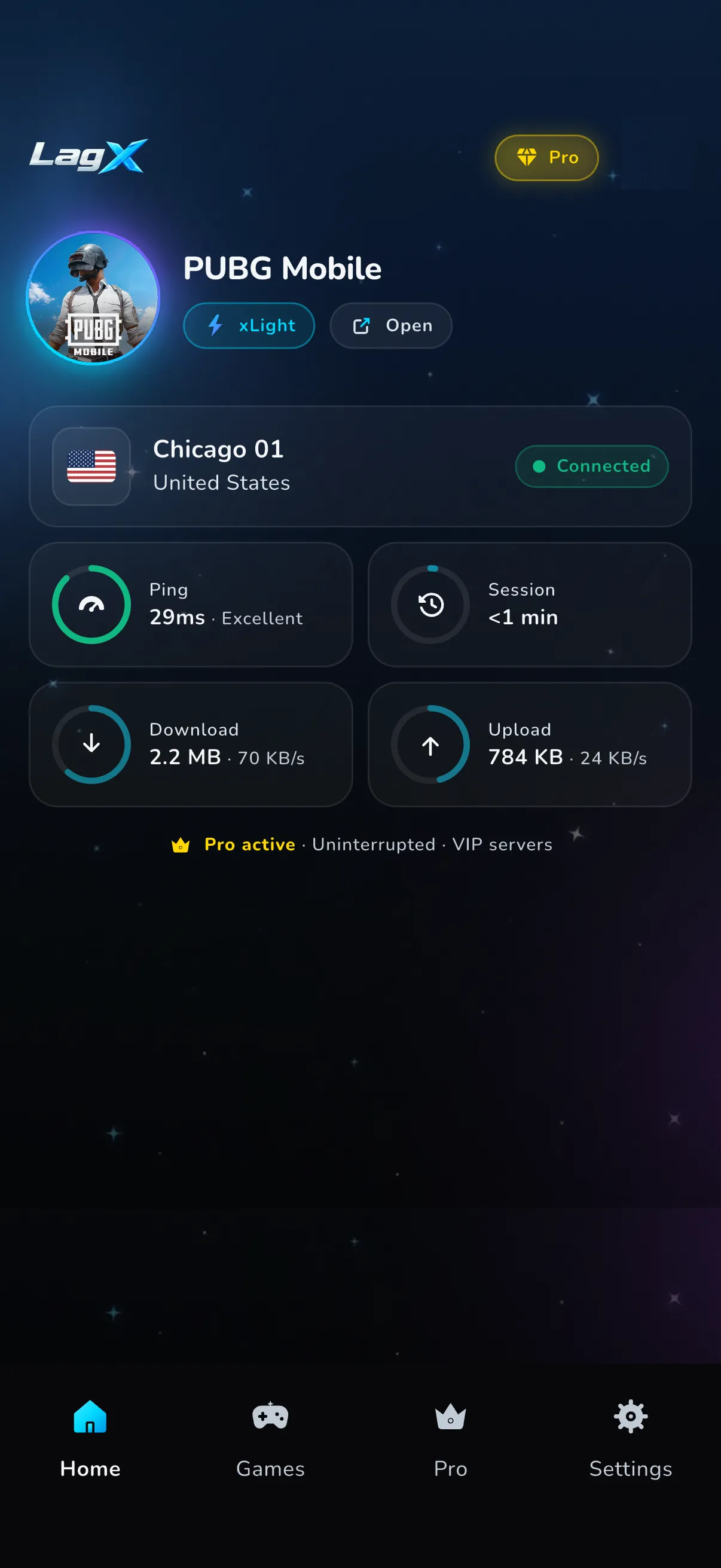
Here’s what it actually does:
- It optimizes one game at a time, so only Roblox rides the fast route while your browsing, video, and chat stay on the normal connection and your battery barely notices.
- It runs on servers stretching from the Americas and Europe through the Middle East and into Asia, so one usually sits near wherever your experience is hosted.
- It supports 90+ mobile games, Roblox among them. Browse the full list or head to the Roblox booster page.
- It needs no root and no jailbreak. Everything happens at the network layer, so your Roblox install and its files are never touched.
Getting going takes about a minute:
- Get LagX on the Play Store and let it open.
- Tap Roblox in the game list.
- Hit Optimize and give it a second to lock onto the fastest route.
- Launch Roblox. From then on, only its traffic uses the optimized path.
About the free part: downloading LagX costs nothing anywhere, and in most regions you get free optimized playtime on a timer, with the cap lifted on Premium. That’s enough to point it at your laggiest experience and judge it yourself.
Two honest catches. LagX only runs on phones, so a laptop Roblox session is out of its reach. And it steers traffic, it doesn’t perform miracles.
Weak Wi-Fi or a Roblox server melting down are both beyond it, same as every other entry here. When packets are dropping on lousy Wi-Fi before they ever leave your room, hop onto the 5 GHz band or sit closer to the router first, then look at the route.
2. The game mode already on your phone
Nearly every Android phone already includes a game mode, free. On Samsung it’s Game Booster sitting inside Game Launcher, and other makers ship their own Game Space. Samsung’s documentation describes a performance mode plus a toggle to hold back calls and notifications during play. That by itself rescues a round when a text lands right as you’re lining up a jump.
None of it moves your ping, because it never goes near the route to the Roblox server. Its real job is the phone side: a chip throttling under heat in a busy experience, or an alert dragging you out of a tower defense match. Leave it enabled and your ping won’t budge.
3. Roblox’s own graphics settings and the rejoin trick
This one’s free, built in, and the most Roblox-specific fix on the list. Open the in-game menu, go to Settings, switch Graphics Mode to Manual, and drop the Graphics Quality slider. Fewer things to draw means a mid-range phone holds its frame rate in crowded experiences instead of chugging.
The rejoin trick is the other half. Because Roblox assigns you a server per experience, leaving and rejoining reshuffles which one you land on, and sometimes that swaps a far, packed instance for a closer, emptier one. It’s a coin flip, so you might reroll three times before you land a better ping.
It also does nothing about the underlying route quality, which is exactly the gap a network booster fills. Still, it costs nothing and takes ten seconds, so try it first.
4. RAM cleaners and task-killer apps
These apps are why “booster” earned a bad name in the first place. They sweep background tasks and flash a gratifying number at you. Android has handled its own memory competently for years, so on most phones that number is theater, and the pushy killers backfire by making apps reload from scratch when you tab back.
Against the ping that warps you across an obby, they’re useless. The nastier ones leave a service running in the background, slowly draining the very battery they claim to protect. Their one honest use is an old handset with 2-3 GB of RAM that truly fills up, and even then, swiping apps away from Android’s recents screen does it for free. If lag is the enemy, leave the cleaners alone.
5. Free VPN and DNS changer apps
A free VPN wraps all your traffic and pushes it through a single server chosen for privacy, often distant and throttled on the free tier. That detour usually adds latency instead of trimming it, the opposite of what a twitchy Roblox round needs. The one exception is an internet provider that deliberately slows game traffic, where a nearby endpoint can occasionally slip past the throttle. Try it on and off and keep whichever ping is lower.
DNS changers ride along in this bucket. DNS is the lookup that converts a game’s address into a numeric IP, and pointing it at a public resolver such as 1.1.1.1 can make a menu or login screen appear quicker. Your in-match ping stays put, though, since DNS fires once when you connect and then bows out. Handy for a minute if menus drag, meaningless for the lag you feel mid-round.
The test that settles it is dull but fast. Load whichever Roblox experience lags worst, feel how it plays, apply one genuine network fix, then feel it again. No difference means the route was never your issue, and your answer is one of the phone-side tools up the list. A clear difference means you just found your lag.
For the whole routine on a phone, our guide on Roblox lagging on mobile walks it step by step, and the best game booster for Android roundup handles the non-Roblox case. If you don’t even know what number counts as good, start with what a good ping for gaming really means.
