
How to Fix Free Fire Lag on iPhone (iOS)

· 6 min read
On this page
Free Fire lag on iOS points at your route far more often than your iPhone. The handset has plenty of muscle for this game, so a character that warps backward in a gunfight is telling you the packets arrived late. That warp is network lag, and it is the version you can actually beat. The fixes below are ordered by payoff on iPhone.
Lag splits into two camps that pull against each other. In one, the phone cannot keep up drawing frames. In the other, a sluggish path to the server holds your packets back. iOS mostly spares you the first camp, since even a two-generation-old iPhone chews through Free Fire fine.
Telling them apart is easy. Stutter while you stand still in the lobby, with nothing on screen moving, points at the phone, and on iPhone that usually means an aging model or Low Power Mode strangling the chip. Smooth play that falls apart the instant a Clash Squad push starts, with your position snapping backward, points at the network. Players call that snap rubber-banding, a late packet landing after the server has already moved everyone else forward.
Keep one eye on the ping readout during a round. When it spikes but your frame rate sits still, your route is the weak link, and no visual setting will rescue it.
The fastest fix
Fixing that route is the entire job of LagX, and setup runs about a minute. Grab it from the App Store, open the Free Fire booster, tap Free Fire in the list, and press Optimize. While you play it keeps racing the available paths from your iPhone to the game server against each other, then clamps onto whichever is quickest and steadiest right then.
A side-by-side routing test tells the story: the raw route bounced around 120-217 ms while the optimized route held 28-32. Free Fire leans on the network the same way, so that gap carries straight over. A wild scramble for loot at the drop hammers your connection as hard as any late-game brawl.
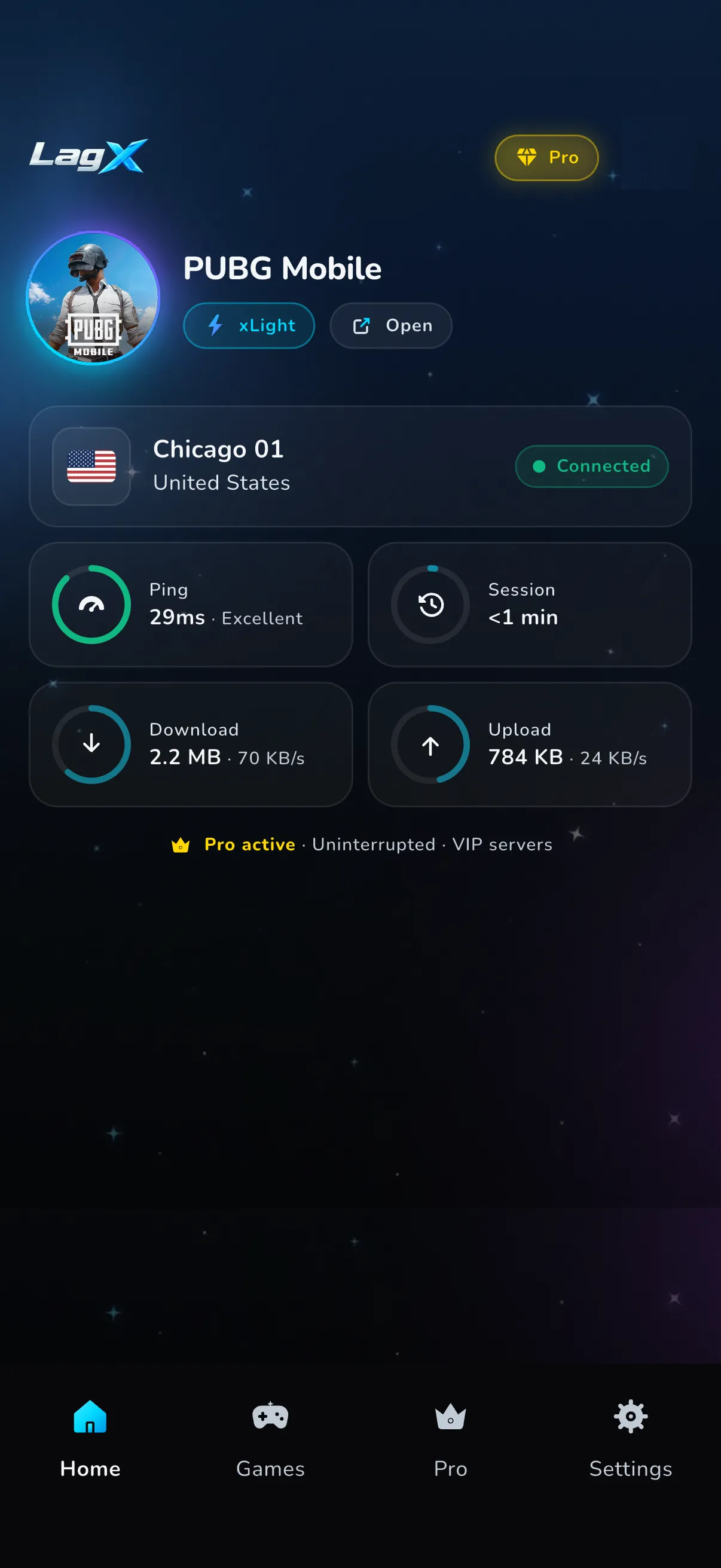
iOS handles this cleanly. Only Free Fire gets pushed onto the faster path, so your browser, your playlist and any download in the background stay on the ordinary connection, and your battery and data barely register the difference. Nothing gets jailbroken, and the game’s own files are never opened, because every bit of it runs at the network layer.
None of that is sorcery, though. A route swap won’t rescue a weak Wi-Fi signal or cool down an iPhone that’s already cooked itself. It only shortens the road your packets travel. The iOS tweaks that follow cover the ground it can’t.
Fix it in your iPhone settings
A few iOS switches quietly bleed frames and ping before the internet is even in the picture. They cost nothing and take a minute, so start here.
Turn off Low Power Mode
Low Power Mode is the quiet saboteur on iPhone. To stretch the battery it throttles the chip, and that throttle shows up as stutter and laggy taps the moment a firefight gets busy. Head to Settings, open Battery, and flick it off before a ranked session. One catch: iOS nudges you to turn it back on once you hit 20 percent, so a yellow battery glyph mid-game is your cue to check.
Kill Wi-Fi Assist
This toggle is iOS-only, and hardly anyone realizes it’s running. Wi-Fi Assist yanks you over to cellular the second it judges your Wi-Fi as shaky, and that quiet switch throws away packets and jolts your ping for a few seconds. Open Settings, tap Cellular, and scroll all the way down to shut it off. Free Fire then holds a single connection from queue to victory screen.
Close background apps and pause iCloud uploads
Free Fire likes having the memory and the upload lane to itself. Clear the app switcher with a swipe before you load in, because a dozen open browser tabs are squatting on RAM the game wants.
Uploads matter more. Should iCloud Photos or a device backup start shoving a video up while you play, it swallows your upload bandwidth and your ping rides up alongside it. Halt it in Settings, or hold off queuing until the backup wraps.
Let it cool and switch on Game Mode
Heat is the other frame thief. Roughly twenty minutes in, a warm iPhone begins throttling to protect itself, and your frame rate slides as the temperature climbs. Take the case off, and keep it off the charger while you play, since charging piles on more heat. On iOS 18 and newer, Game Mode switches on by itself once Free Fire is fullscreen, holding the chip in a higher gear and hushing background chores.
Update iOS and the game
Garena ships optimization patches fairly often, and an outdated build can leave you juddering while the lobby around you runs clean. Update Free Fire in the App Store first. After that, look under Settings, General, Software Update, because an iOS update sitting unapplied can keep background tasks grinding away.
If it’s the network
When the path is at fault, work through this before you optimize a thing.
- Hop onto your router’s 5 GHz band where there is one. The 2.4 GHz side gets clogged with the whole neighborhood’s traffic, and that clutter shows up as jitter.
- Shrink the distance to the router, and give it open air instead of a sealed cupboard or a low shelf near the floor.
- Reboot the router if it has run untouched for a month. They quietly slide into flakiness.
- Shut down any hefty download or 4K stream sharing the line. Those swallow the headroom Free Fire needs.
- Over cellular, a solid 5G bar tends to beat a jammed café hotspot.
Check each change the one way that counts. Queue a lone Clash Squad round and read the ping next to the frame counter. If the ping settles while your frames still stumble, the network was never the guilty party.
Ping is worth a closer look on its own. Free Fire that behaves at home yet erupts the second you enter ranked usually points at server distance or a tangled path rather than your gear. I dug into that over at why your Free Fire ping is high. The Free Fire lag guide walks the fixes that carry over to Android, and good ping for gaming maps what a healthy figure even looks like.
When none of this helps
A slice of lag was never in your hands. When Garena’s servers stumble after a major patch, the whole lobby rubber-bands and no toggle rescues it. Scan their social feeds before you dismantle your setup.
Hotel and café Wi-Fi sits in that same drawer. A shorter route shaves the distance, yet it cannot invent bandwidth a shaky network keeps discarding. Your carrier weighs in too. Cheap plans occasionally route game traffic through jammed paths at busy hours, and a tighter path is roughly the only lever that wins any of it back.
If you flip one iOS switch today, make it Wi-Fi Assist. On iPhone that single toggle kills more phantom ping spikes than anything else buried in Settings.
